Invoice Workflows
Invoice workflows allow you to automate what happens to an invoice once it lands in a ledger. Instead of manually forwarding, approving, exporting, or uploading invoices every time, you define a sequence of steps that runs consistently and predictably.
Workflows are ledger-specific. Each ledger can have one or more workflows, tailored to the type of invoices that land there (e.g. purchase invoices, subscriptions, expenses, CAPEX).
What is a workflow?
A workflow is a sequence of steps that is executed on an invoice.
Typical workflow steps include:
- Sending an email
- Sending or archiving documents
- Requesting approvals
- Sending invoices via Peppol
- Exporting to accounting or ERP systems
There is a large workflow step library, allowing you to combine different actions into one automated flow.
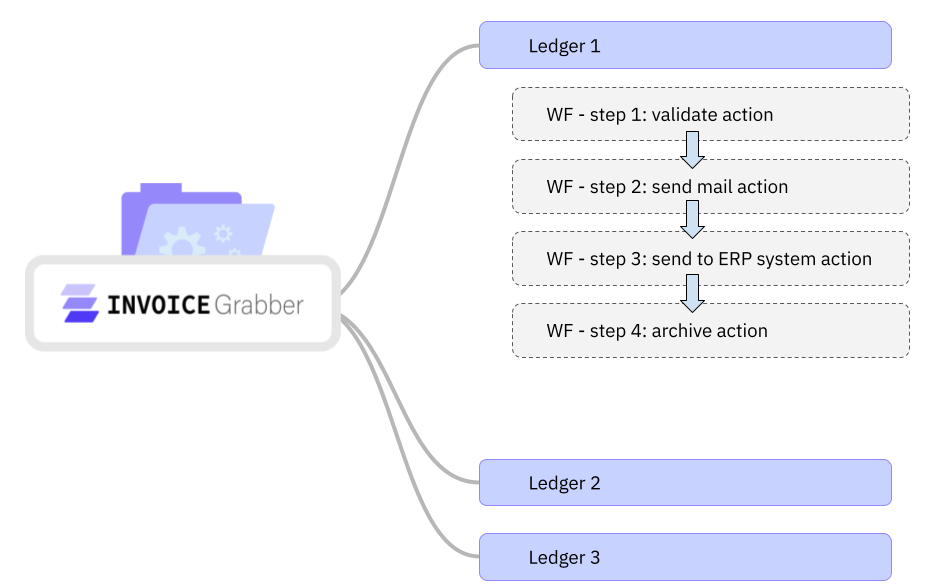
Workflows are executed in order: step 1 must succeed before step 2 runs, and so on.
How workflows are triggered
Workflows can be started in two ways:
1. Manual start
- You explicitly start the workflow on an invoice
- Useful when setting up a new workflow or when invoice data is incomplete
2. Auto start (self-learning)
- When enabled, the system learns from your manual confirmations
- Initially, the workflow will ask for confirmation
- Once a sufficient confidence level is reached, the workflow runs automatically
Auto start is designed to prevent mistakes while still moving towards full automation.
Setting up a workflow
Step 1 – Open ledger settings
- Go to Ledger Settings
- Select the ledger you want to configure
- Open the Workflows section
Step 2 – Add workflow steps
- Click Add workflow step
- Choose a step from the workflow library
- Define the required parameters (e.g. destination, recipient, system, format)
- Save the step
Repeat this process to build a sequence of steps.
Step 3 – Configure start behavior
- Decide whether the workflow should:
- Start manually
- Use auto start
Save the workflow once configuration is complete.
Workflow execution
Once a workflow is configured:
- Invoices arriving in the ledger are evaluated
- If all required parameters are present and valid, the workflow executes
- Steps are executed sequentially
If required data is missing, the workflow may remain pending.
Monitoring workflow status
You can follow workflow execution in multiple places:
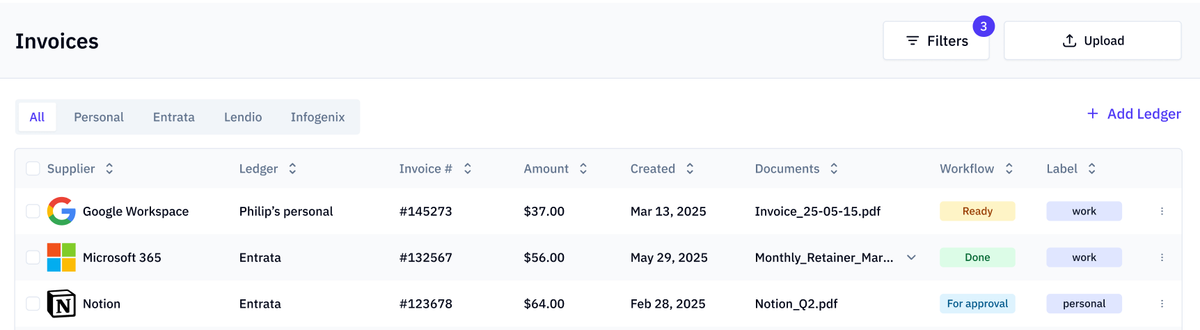
Invoice grid
- The Workflow column shows the current status
- Status examples:
- Pending
- Running
- Completed
- Failed
Invoice detail panel
- View the full workflow attached to the invoice
- See each step and its status

Workflow audit screen
- Available in Settings
- Shows all executed workflows
- Displays how each step was executed, including timing and results
Pending workflows
A workflow can be pending when:
- Required data is missing
- Manual confirmation is required
- Auto start confidence is not yet sufficient
To continue:
- Open the workflow on the invoice
- Click Start to execute it manually
Failed workflows
A workflow step can fail due to:
- Invalid parameters
- External system errors
- Missing permissions or credentials
How to diagnose failures
- Hover over the workflow card in:
- Invoice grid
- Invoice detail panel
- Workflow audit screen
- A tooltip shows the failure reason
Remediating workflow issues
- Go back to Ledger Settings → Workflows
- Adjust the incorrect parameter or configuration
- Retry execution
You can:
- Retry the entire workflow
- Retry a single workflow step
Retries always respect the original step sequence.
Notifications
You can enable email notifications for failed workflows in Notification Settings.
This allows teams to react quickly when automation requires attention.
Best practices
- Start with manual execution before enabling auto start
- Keep workflows focused and predictable
- Monitor the audit screen regularly during initial setup
- Use retries instead of recreating workflows
What’s next
This article explains the general workflow concept. Dedicated guides for specific workflows (e.g. Peppol submission, accounting exports, approval flows) will be provided separately.

