Connecting Sources
Grabber can collect invoices from as many sources you connect.
What sources can be connected:
- Google mailbox
- Office 365 mailbox
- any Imap inbox
- stripe
- Peppol inbox
- Dropbox [beta]
How to connect?
You can connect your sources in either:
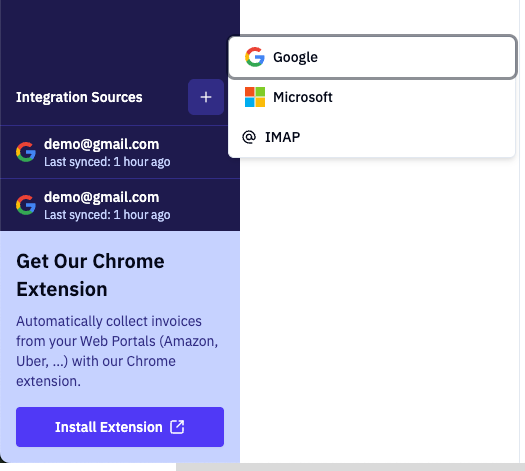
- dashboard screen bottom left: click the + icon
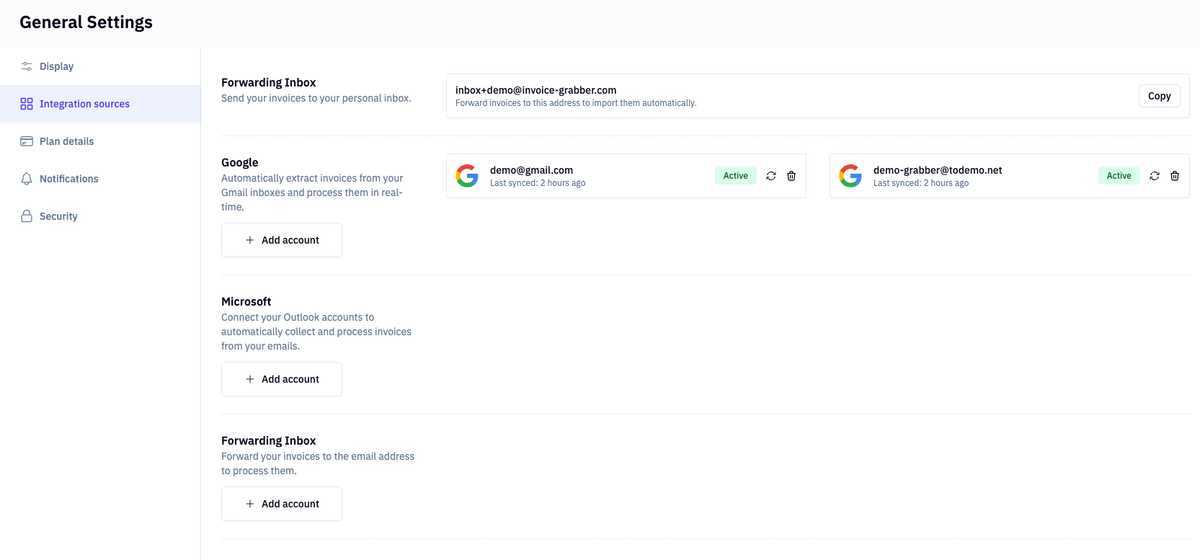
- the settings page: settings> general > sources
[option 1] In the main dashboard, click on the plus sign:
[option 2] in the settings page (settings> general > sources), click on the add button for each source:
Gmail & office
Clicking on Google or microsoft will open an oAuth consent screen. Click through the various steps. It will ask your approval for access to the mailbox and drive. We do need these access roles in order to properly scan you inbox for invoice documents. If the roles are not approved, the scan will fail.
Imap
When clicking on IMAP, a modal will open:
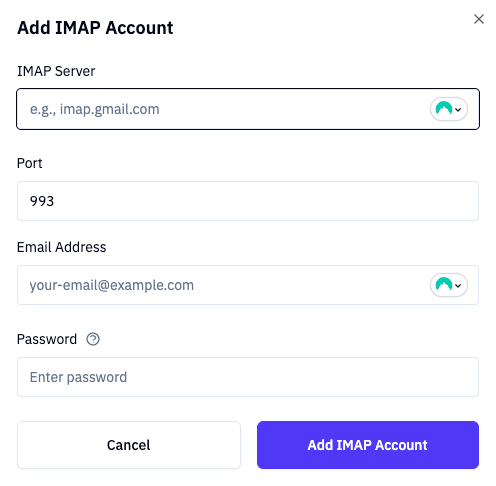
you will need to copy over the settings from your mail provider.
Please note that the password is securely stored in an encrypted format.
Source activity
Both in the left panel menu and in the settings, you can see the source activity:
- Last grabbed time stamp
- Alert if something is wrong (read more in inbox scanning)
TroubleShooting
Microsoft / Outlook.com – “Integration failed” or can’t connect
The Connect Microsoft option works with both work/school (Microsoft 365) and personal Microsoft accounts (outlook.com, live.com, hotmail.com).
If you see “Microsoft integration failed” or the connection doesn’t complete:
- Try again Sometimes the Microsoft sign-in page times out or returns an error. Close the tab, go back to Settings → Integrations, and click Connect for Microsoft again.
- Use the correct account type Make sure you’re signing in with the account you want to use for invoices (the one that receives or has access to the invoices). Personal Outlook.com accounts are supported; if your organization restricts which accounts can be used, you may need to use a work/school account.
- Check redirect and consent After you sign in with Microsoft, you should be sent back to Invoice Grabber. If you get an error from Microsoft instead (e.g. “redirect URI” or “consent”), the app may not be fully configured for your account type. Contact your administrator or [support](mailto:support@invoice-grabber.com) and mention you’re using an outlook.com (or personal) address.
- Still failing? We log connection failures so we can fix issues. Contact support@invoice-grabber.com and tell us you’re trying to connect Microsoft and whether you use outlook.com or a work/school account.
Google – “Integration failed” or can’t connect
- Try again Sign out of the error page, go back to Settings → Integrations, and click Connect for Google again.
- Check which account you use When Google asks you to choose an account, pick the one that receives or has access to your invoices.
- Consent and permissions You may need to approve access to read mail (and optionally files). If Google shows “Access blocked” or “This app isn’t verified,” you can still usually continue by choosing “Advanced” → “Go to Invoice Grabber (unsafe)” (or similar), unless your organization blocks it.
- Still failing? Contact support@invoice-grabber.com and mention Google integration.
IMAP – Can’t connect or “invalid credentials”
IMAP lets you connect any mailbox by entering your email and password (or app password).
- Use an app password when required Many providers (Gmail, Outlook, etc.) don’t allow your normal password for IMAP. In your email provider’s security or account settings, create an **app password** and use that in Invoice Grabber instead of your regular password.
- Unlock the account If the provider has flagged “suspicious login” or locked the account, sign in on the web or in the official app and complete any security steps (e.g. verify it’s you). Then try connecting IMAP again.
- Provider blocking Some providers block or limit IMAP from certain apps or servers. If you keep getting “access denied,” “blocked,” or “too many connections,” try:
- Waiting a bit and retrying (temporary blocks often clear).
- Using Google or Microsoft (OAuth) instead of IMAP for that mailbox if possible; they often work more reliably. - Still failing? Contact support@invoice-grabber.com and mention IMAP and your email provider (e.g. Gmail, Outlook).
Invoices not showing up or syncing
- Integrations: Make sure the right integration (Google, Microsoft, or IMAP) is connected and shows as active in Settings → Integrations.
- Time range: Check that the date range or filters in the invoice list include when the invoices were received.
- Same mailbox: The connected account must be the one that actually receives the invoices (or has shared access). If you connected the wrong account, disconnect and reconnect with the correct one.
If everything looks correct and invoices still don’t appear, contact support@invoice-grabber.com with a short description (e.g. “Microsoft connected but last week’s invoices are missing”).

